

LibraryVibecoding News and Updates2 min read
VS Code local agent automations get custom schedules
VS Code 1.145 adds custom cron schedules and workspace custom agents to local automations. Check where the task runs and what permissions it has before scheduling it.
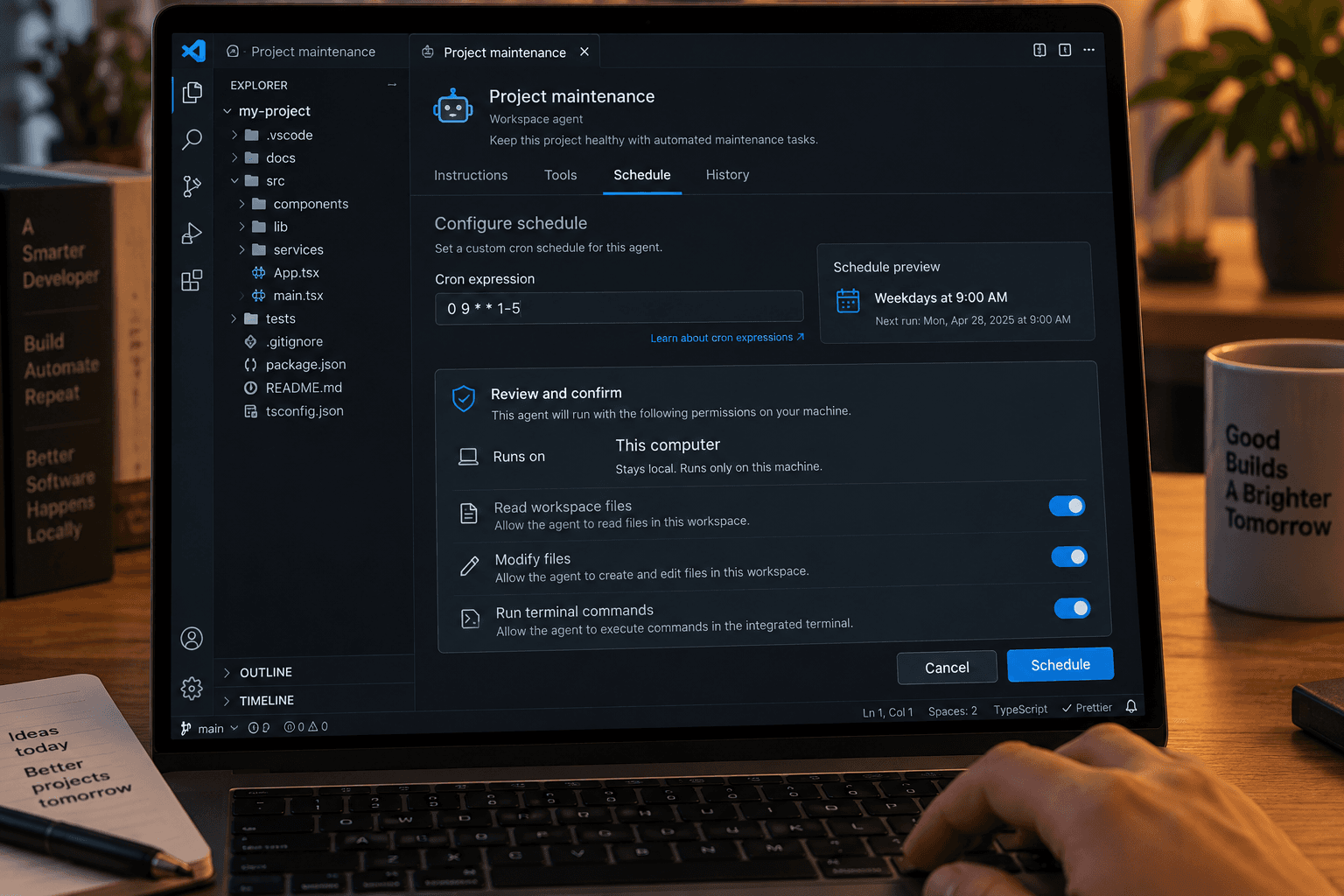
A recurring coding task can be useful to automate, but only if it runs where the work and permissions make sense. VS Code 1.145, released November 4, adds custom cron schedules for local agent automations. You can also choose workspace custom agents for those local automations. The release notes describe both changes.
This is for a practitioner with a repeatable, bounded task: perhaps preparing a daily summary of recent commits or organizing issues for review. Instead of choosing only a built-in schedule, you can enter a five-field cron expression. VS Code validates it and shows an explanation of when it will run. For example, 0 9 1 * * schedules a task for 9:00 a.m. on the first day of each month.
The schedule runs on your machine
Cron schedules are available for local automations, not cloud automations. That distinction matters. Local work can use your development environment, but the machine has to be awake and the agent available. With an Agent Host-backed schedule, the Agent Host process must be running. Other local schedules require an open VS Code window. The automation guide says a missed schedule might trigger a catch-up run after an interruption, but it doesn’t guarantee that every missed occurrence will run later.
Before setting a recurring trigger, try the task manually. Check the prompt, workspace, selected agent, model, isolation, and permissions. VS Code warns that an automation can read files, run commands, and make changes within its agent’s permissions. A schedule doesn’t remove those capabilities or guarantee that future runs won’t need approval.
Then inspect the first result. Confirm the agent read the right material, produced the expected output, and made only changes you intended. If the task is meant to report information, say so in the prompt and explicitly prohibit file edits or other actions. Decide how you’ll notice a failed or missed run before relying on it for something time-sensitive.
Decide whether local scheduling fits
Use a local cron schedule when the task needs a particular workspace or local tools, and you can keep the machine and required process available. If the automation must run while your computer is off, local cron is the wrong execution environment. VS Code documents separate cloud automations, but those have their own access, security, and usage requirements.
The useful change is a more precise schedule for repeatable local work. It doesn’t make an automation dependable by itself. Start with a low-risk task, review the first run, and schedule it only when you know what it can access and how you’ll check whether it ran correctly.
Sources: Visual Studio Code 1.145 release notes and Create and manage agent automations.
Sources
Every claim above traces back to one of these. Go read them yourself.
- 01Visual Studio Code 1.145 release notes
Visual Studio Code / code.visualstudio.com / retrieved Nov 05, 2026
- 02Create and manage agent automations
Visual Studio Code / code.visualstudio.com / retrieved Nov 05, 2026
Suggested reading
Selected articles based on topic, tags, and skill focus across the library.
Vibecoding News and Updates
Turn merged pull requests into a release note draft
A coding agent can help turn a selected set of merged changes into a release note draft. Keep the source links, verify what users will notice, and leave publication with a person.
Vibecoding News and Updates
October 2026: Coding agents moved into the workflow
October’s coding tools spread across models, IDEs, repositories, and longer-running work. The useful question for November is how you’ll check what they do, not how much code they can produce.
Vibecoding News and Updates
Copilot cloud sessions follow you across clients. Check where the work runs.
GitHub connected Copilot cloud sessions across VS Code, mobile, the CLI, and other clients. Before handing off a task, check whether it runs on GitHub’s cloud or a machine you need to keep online.