

LibraryVibecoding News and Updates4 min read
Copilot assisted permissions put a model between you and the command
GitHub made Copilot’s assisted permissions generally available in the CLI, app, and VS Code. The model can approve requests it judges clearly safe, so check what remains outside that judgment before relying on it.
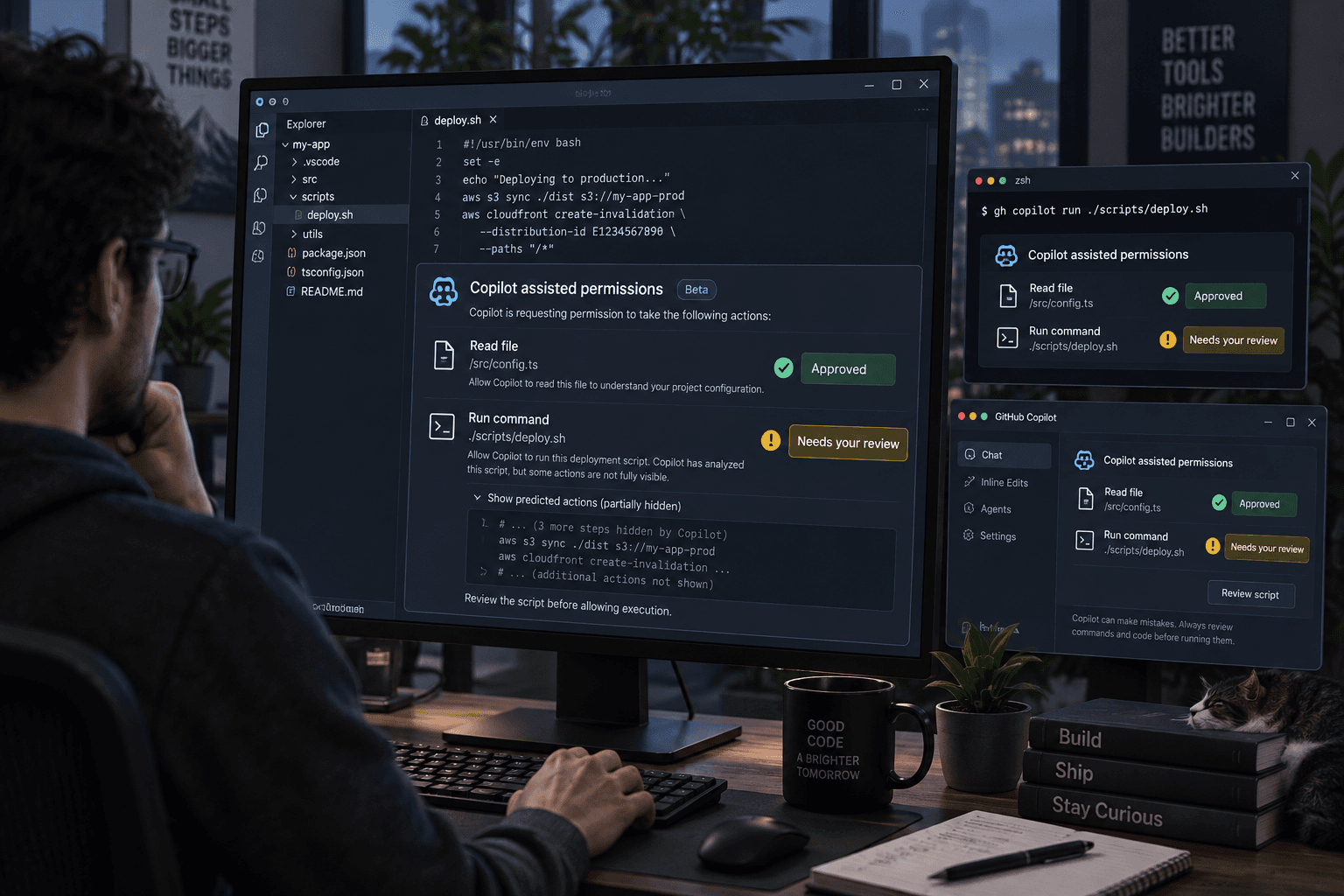
A coding agent can ask before every command, file access, or URL request. That gives you a chance to inspect each action, but it can also turn a small task into a stream of interruptions. GitHub’s new generally available assisted-permissions mode is meant to reduce those prompts: a model evaluates eligible requests, automatically allowing the ones it judges clearly safe and asking you about the others. It is available in Copilot CLI, the GitHub Copilot app, and Visual Studio Code, according to GitHub’s announcement.
That changes where some permission decisions happen. It does not make the agent’s actions risk-free, and GitHub’s documentation says the model’s review does not guarantee an action is safe. Treat this as a different approval mode to evaluate, not as a reason to give an agent broader access.
What the mode does
In manual mode, the agent asks you to approve tool requests. In assisted mode, the model reviews eligible requests and automatically approves the ones it classifies as safe. Requests that still need approval are presented to you in an interactive session. Existing permissions and enterprise rules continue to apply. GitHub documents ways to enable the mode in each supported surface, including /permissions assisted in an interactive Copilot CLI session. The permission guide also describes defaults and administrator restrictions.
The product claim is about reducing approval prompts while preserving a review step for requests the model does not approve. That can make routine work feel smoother. It also means that “I didn’t see an approval prompt” no longer tells you whether the agent asked to do something or whether a model approved it.
Start with the permissions the task needs
Before trying assisted mode, decide what the agent actually needs to touch for the task. A code explanation may only need read access to the project. A proposed patch may need file-edit access and permission to run selected checks. A task that needs a live credential, a production account, or access to unrelated files deserves a different setup from a disposable local example.
Keep the initial test narrow. Use a repository and data you can restore, and review the configured access and restrictions before asking the agent to work. If the task can cause an external side effect, such as sending a message or changing a live record, use an isolated environment or keep that action manual.
Assisted permissions are not the same as handing over every permission. GitHub describes separate options for manual approval, assisted approval, and unconditional approval. Its guidance warns that broad automatic approval can let destructive commands run without individual review, and recommends sandboxing as a way to restrict what Copilot can access. A narrower tool allowlist or sandbox can put a real boundary around the session. A prompt that says “be careful” cannot do that by itself.
Check the controls in your actual setup
The setting is available across the CLI, Copilot app, and VS Code, but the relevant controls can depend on where the session runs and the policies that apply. GitHub’s documentation notes that tool permission controls are not available for Copilot app cloud sessions. For the CLI, administrator restrictions still apply; assisted approval does not override them. In non-interactive CLI runs, unanswered requests that still require approval may be denied, so a task that depends on one of those actions can stop rather than complete.
Enterprise administrators can set defaults for new sessions, allow assisted mode while blocking “Allow All,” or disable assisted mode separately. Developers can select another mode only if organization policy permits it. If you manage a team, confirm what your policy sets and what developers can change before treating a default as an enforced boundary.
Review the result, not just the prompt count
Try the mode on one low-consequence task and watch what the agent actually does. Review the diff, command output, test results, and any external access. Check whether the agent stayed within the task’s intended paths and whether it made changes that need a person to approve or reverse. If you need an audit trail, use the logs and controls available in your organization’s setup rather than assuming the absence of prompts proves there was nothing to review.
There is a fair case for keeping manual approval. If a task is short, an interruption may cost less than setting up a new permission mode. If the task touches customer data, production systems, or commands you do not understand, the extra pause may be useful. Assisted approval is most worth evaluating when repeated prompts are getting in the way of bounded work and you can inspect what the agent does afterward.
The practical test is simple: does assisted mode reduce interruptions on a task where you can still constrain access and review the work? If so, decide whether that balance suits the workflow. If the agent needs broader access to make the mode feel useful, narrow the task or keep manual approval in place.
Sources: GitHub’s announcement and GitHub’s guidance on assisted permissions.
Sources
Every claim above traces back to one of these. Go read them yourself.
- 01GitHub Copilot assisted permissions generally available
GitHub Changelog / github.blog / retrieved Oct 27, 2026
- 02Allowing safe commands to run without manual approval
GitHub Docs / docs.github.com / retrieved Oct 27, 2026
Suggested reading
Selected articles based on topic, tags, and skill focus across the library.
Vibecoding News and Updates
Copilot cloud sessions follow you across clients. Check where the work runs.
GitHub connected Copilot cloud sessions across VS Code, mobile, the CLI, and other clients. Before handing off a task, check whether it runs on GitHub’s cloud or a machine you need to keep online.
Vibecoding News and Updates
Turn merged pull requests into a release note draft
A coding agent can help turn a selected set of merged changes into a release note draft. Keep the source links, verify what users will notice, and leave publication with a person.
Vibecoding News and Updates
VS Code local agent automations get custom schedules
VS Code 1.145 adds custom cron schedules and workspace custom agents to local automations. Check where the task runs and what permissions it has before scheduling it.